Modules · For the quality manager
Document approvals and the approval matrix
How the work moves
Approval- 1Name approvers
- 2Send for review
- 3Sign or return
- 4Approve revision
Open: Documents > Document Control. Typical leads: Quality Manager and Document Controller; engineers and department managers can perform permitted document work. Purpose: keep an identifiable, approved revision in force and retain its history.
Prepare and approve a revision
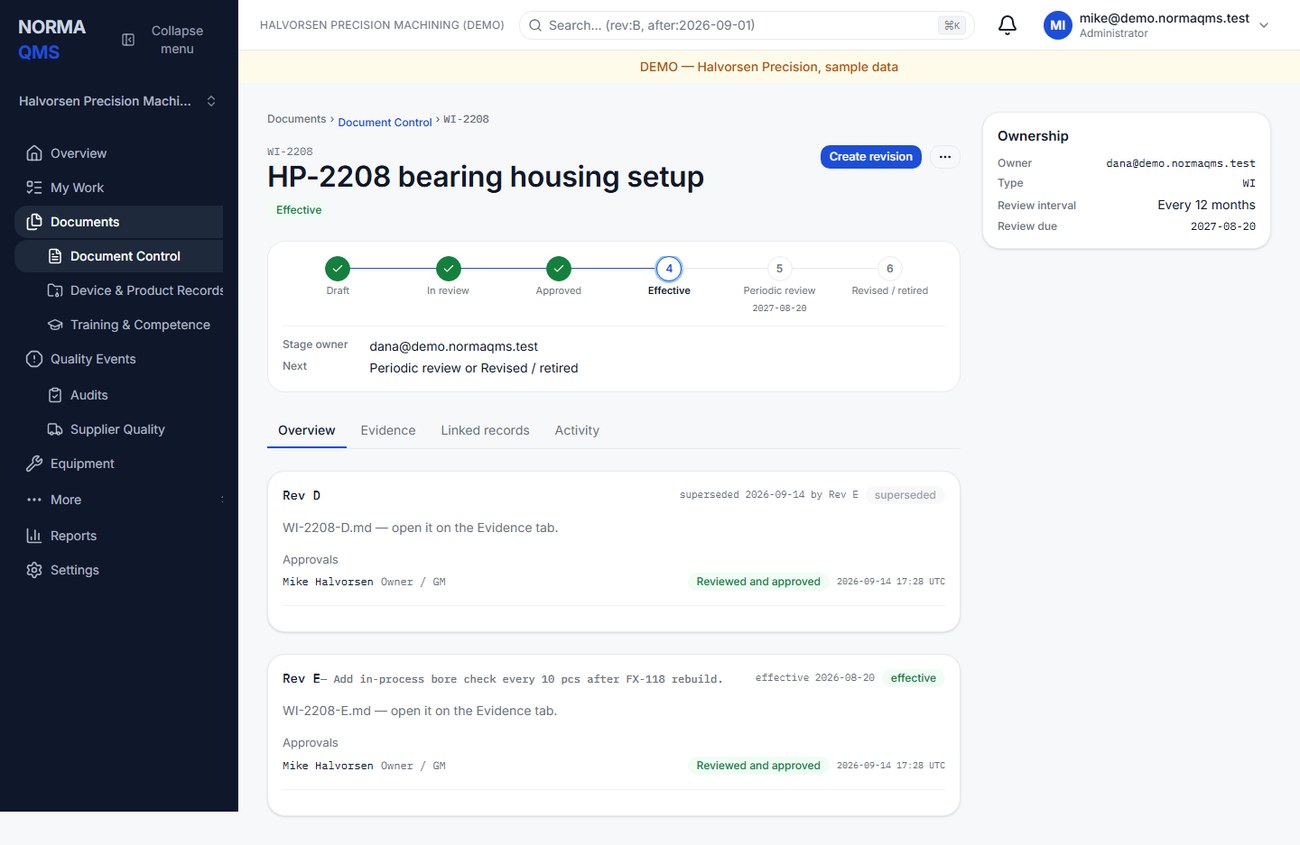
- Choose Create revision. Enter a unique revision label, up to eight characters using letters, digits, dots, or dashes and beginning with a letter or digit. Labels are normalized to uppercase.
- For a later revision, enter the required change summary. Explain what changed in language an approver can assess.
- Attach the revision file using Attach file, up to 25 MB. Confirm its filename and hash after upload.
- If the revision supports in-app text authoring, open Edit, revise the Markdown text, inspect the preview, and save. Use Markdown headings, lists, and tables for structure. The editor is a document-content editor, not a replacement for Word's layout tools.
- Add the required approvers by email and, optionally, the role or capacity in which they approve. At least one approver is required, and it cannot be you: as the form says, an author cannot approve their own revision, and the signature is refused if they try. The role is free text that appears on the signature exactly as typed, so agree the wording once.
- Choose Send for review. The ordinary UI requires both a file and at least one approver.
- Each named approver reviews the exact file and change summary, then signs their own line with password verification and an approval or rejection meaning.
- When all required approvals are positive, choose Mark approved. Approval and effectivity are separate steps.
- An authorized quality manager or administrator chooses Make effective, enters the effective date, chooses Retraining required — everyone re-reads this revision or No retraining required — prior reading stays current, and submits Set effective date.
Confirm that the intended revision is Effective and that the former effective revision is Superseded with a named successor. The previous effective file remains the controlled version while a successor is being drafted or reviewed. A date recorded during effectivity is evidence of the declared effective date; inspect the state rather than assuming an unsubmitted date schedules a background release.
Revision states
| State | Meaning and next work |
|---|---|
| Draft | Prepare content, file, change summary, and approvers |
| In review | Named approvers review and sign; return to draft where permitted |
| Approved | Required positive approvals exist; authorized user makes effective |
| Effective | Revision currently in force |
| Superseded | Replaced by the identified successor |
| Obsolete | Withdrawn without a replacement through the permitted withdrawal action |
File and approval controls
Before signatures, a draft or in-review revision can accept a file while the available controls permit it. Once any signature has been recorded, the file cannot be swapped underneath that signature. Create a new revision for changed content. A recorded signature cannot be edited or removed to make a rejected file appear approved.
Approvers can be added while draft or in review; the approval matrix closes after approval. An author cannot be an approver of their own revision: adding yourself is refused at the approval matrix, and a stale form that reaches the signature is refused there too, with the message that approval requires an independent approver. Older revisions approved before this rule can still carry an Author-approved marker on their approvals list; that marker is history, not permission. Use Remove only where the app offers it for an eligible approval requirement. An unavailable consultant approver may leave a work item that needs rerouting. Do not sign under their identity.
Use Return to draft if the available workflow allows more preparation. A return does not erase recorded signature evidence. If a rejection or signed content prevents completion, start the next valid revision instead of attempting to overwrite history.
In the user guide
This article is part of chapter 9, "Document Control", of the NormaQMS User Guide (NORMA-UG-001), which is under Help > User guide. Chapter numbers in the text refer to that guide. The same chapter also covers: Create a document identity; Record a periodic review; Reading and training impact; Evidence to check.