Modules · For the quality manager
The quality manual builder
Quality manual and document library: build a quality manual; deploy documents from the library; update or roll back a library document. This is chapter 10 of the NormaQMS User Guide.
Build a quality manual
Open: Document Control > Build it, or the quality-manual builder link. The builder creates a controlled draft that you review and approve normally.
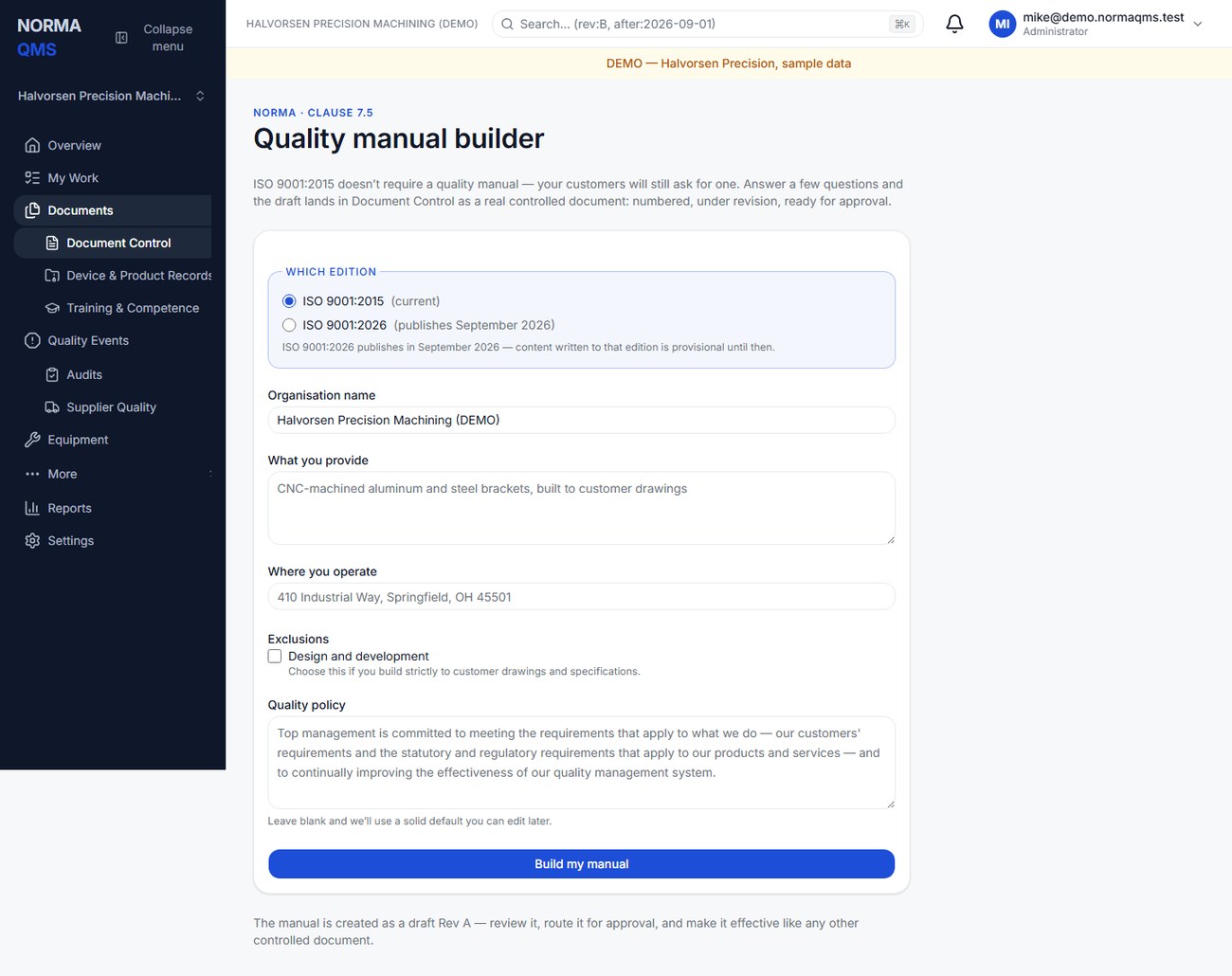
- Select the ISO 9001 edition offered by the builder. The 2026 option has edition-specific wording and caveats; check those before using its content.
- Confirm organization name, what you provide, and where you operate.
- Select only exclusions your shop has determined appropriate. Reconcile these with the signed scope baseline.
- Enter your quality policy or review the proposed default wording.
- Choose Build my manual. Open the resulting quality-manual document and draft revision.
- Review every section against actual practice, correct the draft as necessary, select approvers, and complete the ordinary approval and effectivity workflow.
The builder is an ISO 9001 manual generator, not a generic generator for every standard overlay. It refuses a second manual once the designated manual exists. Revise the existing manual rather than rerunning the builder to create competing copies. A manual's name or chapter structure does not establish certification.
Deploy documents from the library
Open: Document Control > Deploy from the library. A member with document-creation authority can use self-service deployment. Consultant key holders use the engagement deployment workflow instead.
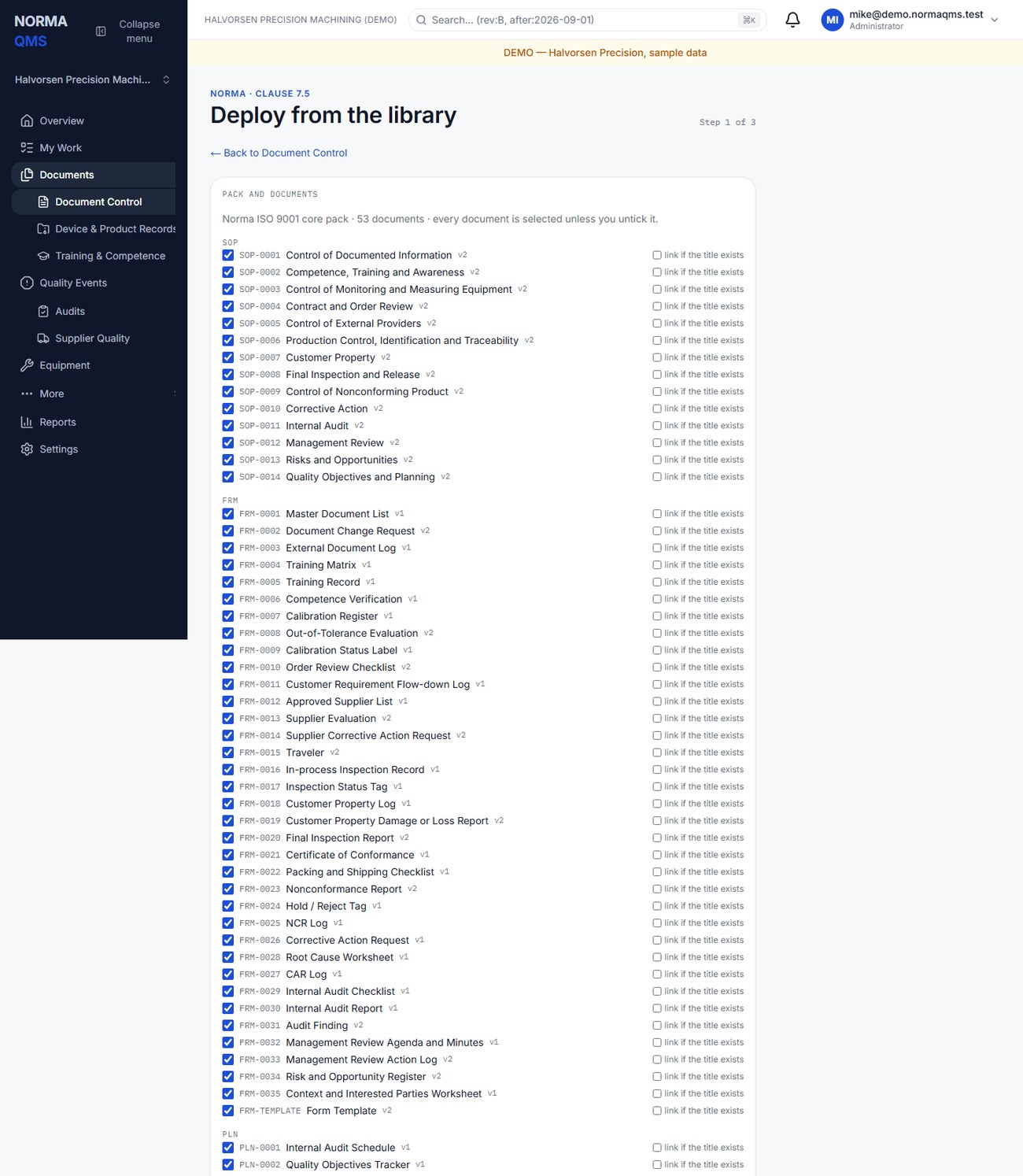
- Choose an available pack. Norma packs are available to the deployment workflow; a consultancy's packs are offered only while the relevant practice has active access to the organization.
- Select published assets. Unpublished assets cannot be deployed. Where the wizard offers Link if the title exists, use it only after confirming the existing document is genuinely the intended equivalent.
- Fill in the requested organization and role-title variables. Select the document owner.
- Choose Preview. Review every proposed create, update, link, or skip result, its reason, and the resolved document numbers and references.
- Resolve missing answers, unresolved references, or conflicting open revisions. The preview is not the final write.
- Choose Deploy now to authorize and execute the reviewed self-service plan. Use Discard to abandon an unwanted open plan.
- Review the resulting client-owned draft documents and provenance. Route each for approval and effectivity as required.
One open self-service plan is allowed per organization. A stale plan may be refused if numbering, library content, access, or other inputs changed after preview; prepare a new preview rather than treating the old plan as current. Deployment creates drafts. It never makes a procedure effective or trains anyone automatically.
Update or roll back a library document
On a deployed document, open the Provenance area. When a newer published version is available and you have authority, Apply update creates a new draft revision. Review the proposed text against local changes before approval.
Roll back offers eligible versions the organization previously received. A rollback also creates a draft and requires ordinary approval; it does not overwrite the effective revision. Finish or otherwise resolve an existing open revision before applying an update or rollback. If practice access has ended, its pack may no longer be available for deployment.
In the user guide
This article is chapter 10, "Quality manual and document library", of the NormaQMS User Guide (NORMA-UG-001), which is under Help > User guide. Chapter numbers in the text refer to that guide.