Modules · For the quality manager
Opening and working a CAPA
How the work moves
Corrective action- 1Contain
- 2Find the cause
- 3Implement action
- 4Verify effectiveness
Open: Quality Events > CAPA. Investigators: authorized Quality Manager, Engineer, Department Manager, or QA Technician. Other authorized roles can open CAPAs. Effectiveness closure: Quality Manager or administrator.
Open the CAPA from its source
When the issue came from an NC, audit finding, supplier, or out-of-tolerance assessment, use Raise CAPA on that source. Otherwise choose Open CAPA on the register for a standalone CAPA with a source and a clear description. Record containment separately from the corrective action.
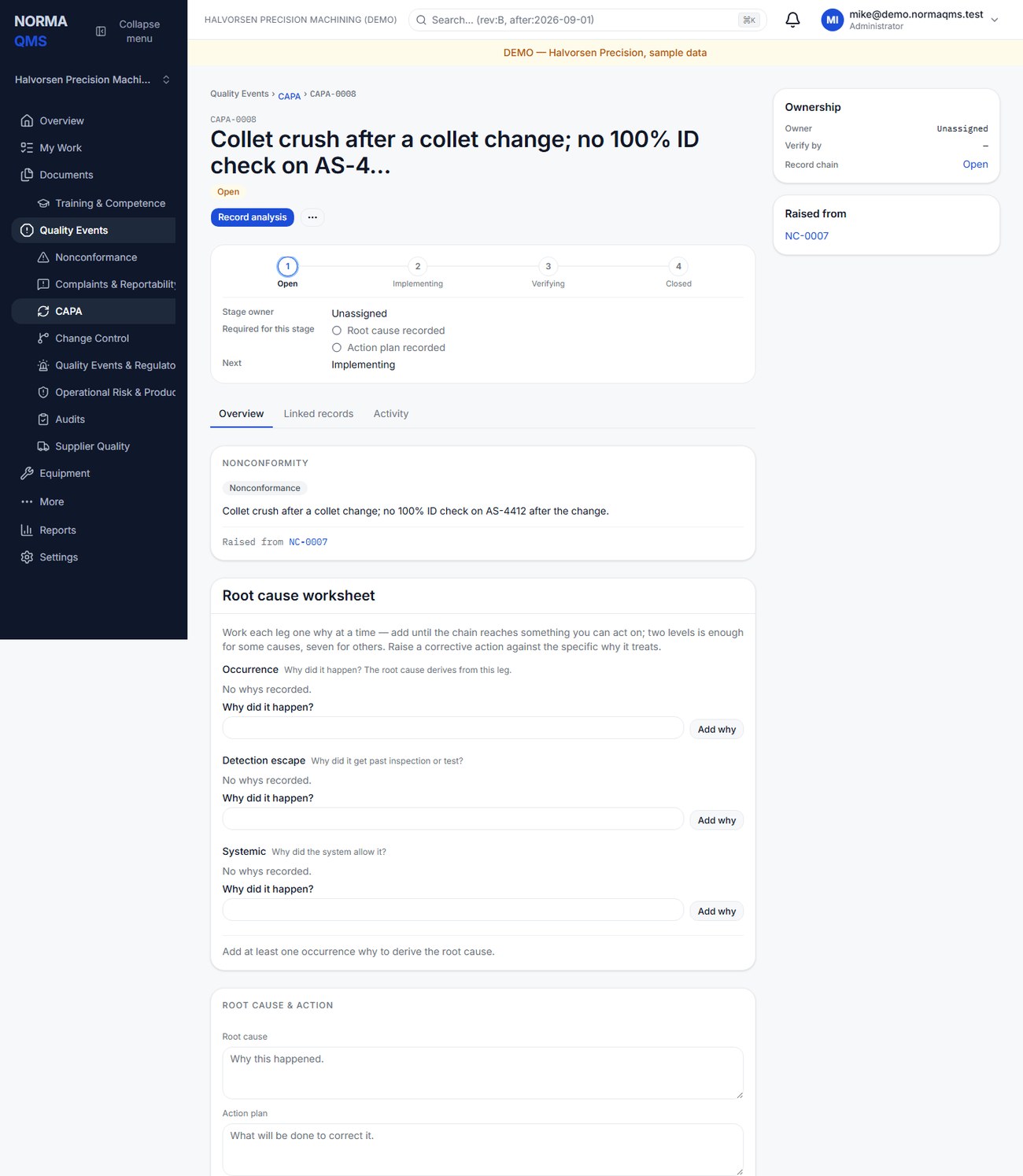
A CAPA has at most one of the supported originating source relationships. Do not attempt to give one CAPA both an NC source and an audit-finding source. You can describe other relevant records in the narrative and use supported links for their specific purpose.
Analyze using free text
While the CAPA is Open, enter Root cause and Action plan under Root cause & action, then choose Record analysis. Explain the mechanism supported by the evidence, not only the symptom. The CAPA moves to In progress when analysis is recorded.
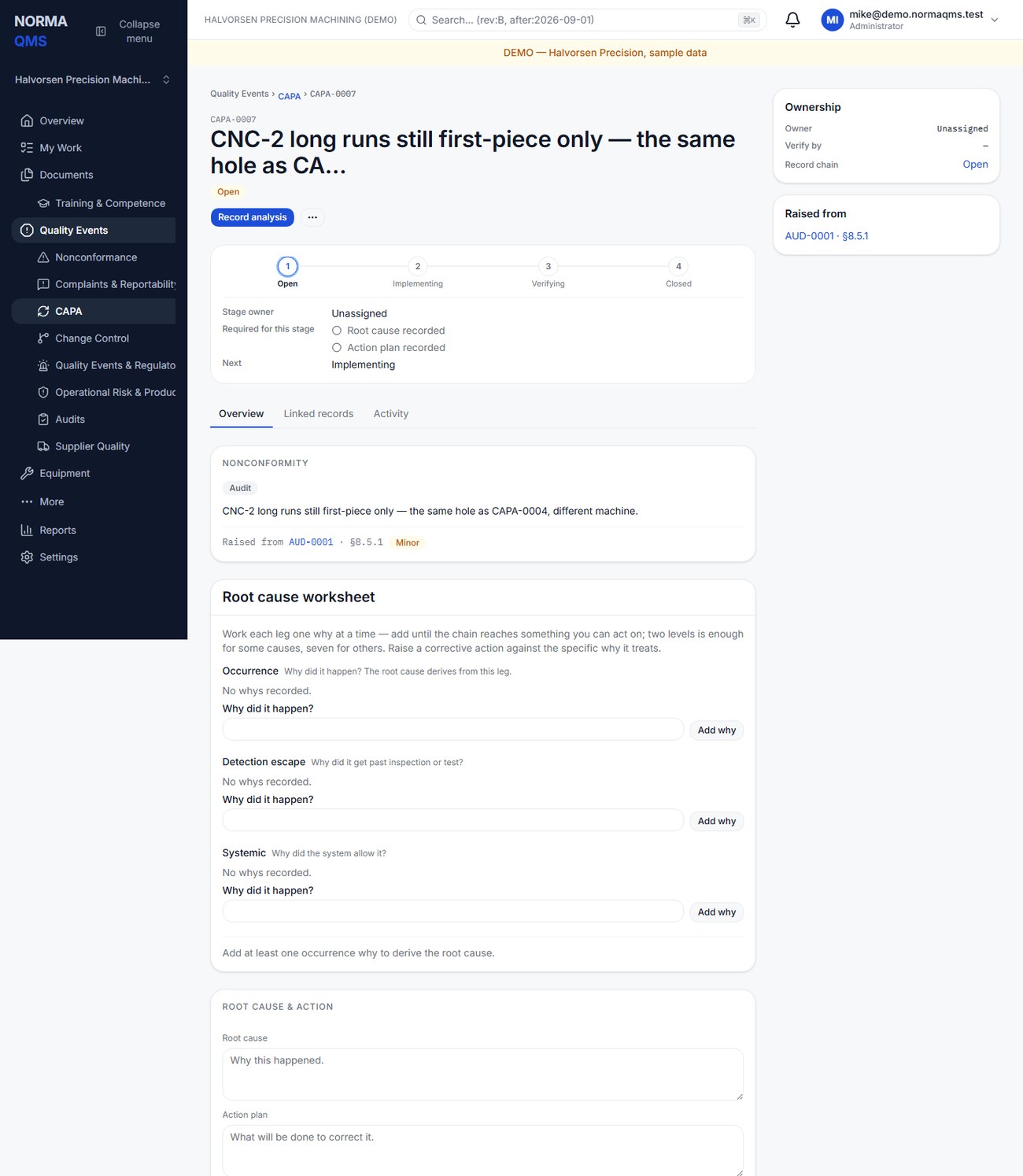
Analyze using the root cause worksheet
The structured worksheet provides three branches:
| Branch | Question |
|---|---|
| Occurrence | Why did the problem happen? |
| Detection escape | Why did inspection or test fail to detect it? |
| Systemic | Why did the management or operating system allow it? |
- Choose Add why in the appropriate branch, one statement at a time. Continue until the chain reaches a cause you can act on; the app does not require exactly five levels.
- Use Raise action from this why to assign a countermeasure to the specific cause, with title, assignee, detail, and due date.
- Correct the worksheet while Open. The last Why in a branch can be removed only when the offered control permits it and it has no linked action.
- Enter the explicit human-factors answer covering fatigue, training, communication, workload, or environment. If none contributed, explain the evidence for that conclusion.
- Review Derived root cause, then choose Complete analysis. At least an occurrence Why and the required human-factors answer are needed for the structured completion path.
Completion freezes the worksheet, retains the derived root cause and action plan, and moves the CAPA to In progress. It can record an intent to raise actions where none yet exist; that is not evidence that the actions were implemented. Continue the actual implementation workflow.
Manage actions and document changes
Use the CAPA's Raise an action item section for general follow-up and the Why-specific control for cause-linked countermeasures. Review the status of each ACT record before declaring implementation complete.
Under Document changes, select a document, add a change note, and choose Link document. Confirm that the intended document is linked. Use Unlink only when appropriate and permitted. This relationship identifies the document change needed; it does not edit the file, create an approved procedure, or make it effective. Complete the document's own revision and training-impact workflow.
Implement and schedule verification
When the action plan has actually been implemented, enter Implementation note and Verify effectiveness by, then choose Mark implemented. The verification date is required and must be today or later at that step. The CAPA enters Verifying.
Use a meaningful verification interval. “Check the next three production lots after the fixture and instruction change” is more useful than checking immediately before the change has been exercised. The register shows overdue verification when that date passes while the CAPA remains Verifying.
Verify effectiveness
- Review the evidence against the intended result. Identify the period, sample, records examined, and outcome.
- Enter a verification note.
- Select Close as effective only when the evidence supports effectiveness.
- Select Not effective — reopen if it did not work. The CAPA returns to In progress, retains the failed verification, and clears the verification date so a later implementation can establish a new check.
The normal lifecycle is Open, In progress, Verifying, Closed. A failed check creates a loop; it is not an administrative error. Revise the work under the controls available for the current state, record implementation again, and verify again. The completed structured worksheet remains historical evidence rather than an editable explanation of the past.
Example: CAPA-0004 (rejects from fixture F-12) was marked implemented on 2026-08-20 with Verify by 2026-09-20 — "check the next three lots". Lots 4581, 4590 and 4602 ran clean, so the verification note names those three job numbers and the zero reject count, and the CAPA is closed as effective. Had lot 4590 rejected, Not effective — reopen would have sent it back to In progress with the failed check on record.
Completion check: source, cause, action, implementation, document changes, and effectiveness evidence tell one consistent story. Closing a supplier response, action item, or document revision does not automatically close the CAPA.
In the user guide
This article is chapter 25, "Corrective and Preventive Action", of the NormaQMS User Guide (NORMA-UG-001), which is under Help > User guide. Chapter numbers in the text refer to that guide.