Modules · For everyone on the floor
Nonconformance
How the work moves
Nonconformance- 1Raise and contain
- 2Review
- 3Disposition
- 4Verify and close
Open: Quality Events > Nonconformance. Intake: all internal members can report a problem when the module is available. Documentation: authorized quality and operational roles. Disposition and closure: Quality Manager or administrator.
Raise the record promptly
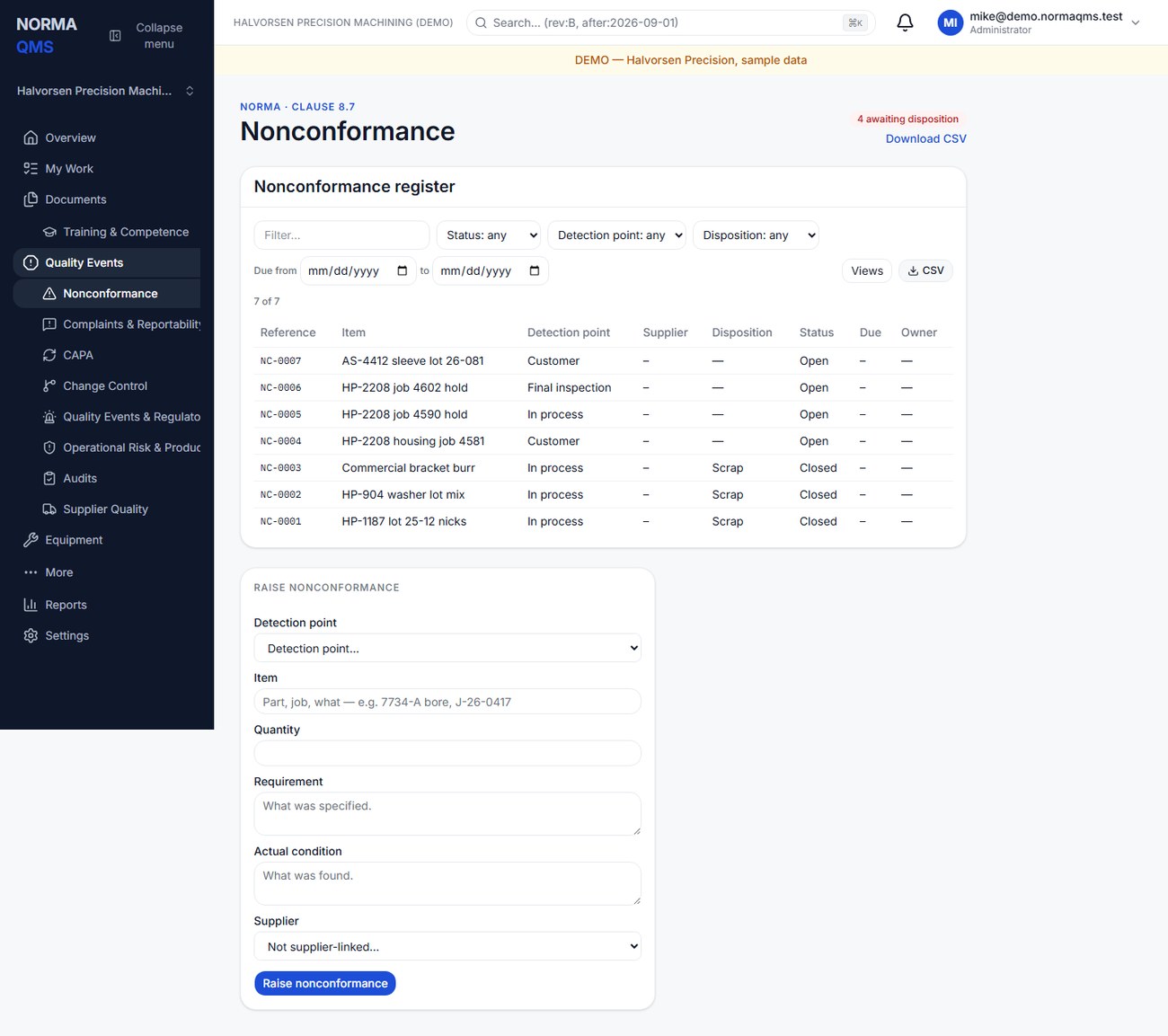
- Select Raise nonconformance.
- Choose the detection point: Receiving, In process, Final inspection, Customer, or Audit.
- Identify the item and quantity. Include part, job, lot, or serial information in the appropriate fields or description.
- State the requirement and actual condition separately. Add a supplier from the list if the problem relates to one.
- Submit and note the NC reference. Confirm the saved condition before leaving the page.
Example: requirement “Drawing BKT-204 Rev C, hole 1 diameter 10.00 ±0.05 mm”; actual condition “Three of 40 pieces measured 10.08–10.10 mm at final inspection using BG-012.” This separates the acceptance criterion from the measured failure.
Tip: A nonconformance raised from the floor tablet arrives here already tied to its job and operation, with the photo the operator took. Open it from My Work, add the requirement and the actual condition in the quality manager's words, and it is ready for disposition — do not raise a second NC for the same event.
Contain and disposition
Record immediate containment while the NC is open: quantity held, location, identification, affected work, and who was informed. A record alone does not physically segregate material or stop shipment.
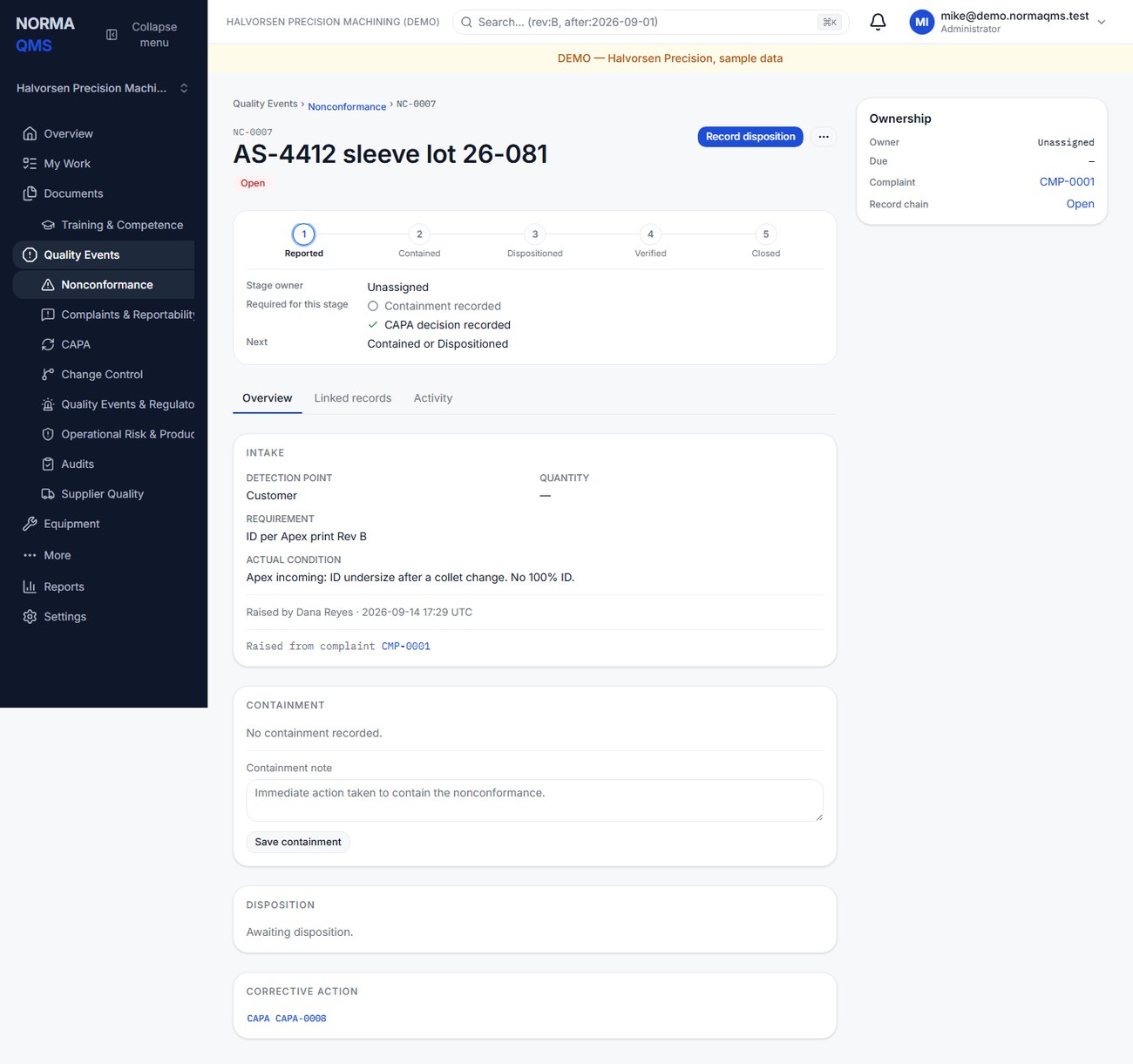
An authorized user chooses Record disposition, selects the disposition and records its rationale. As the form says, Use as is and Repair need a concession or an explicit 'not required' rationale — in every organization: enter the Concession reference with who granted it and when, or state under Or: why no concession is required why none is needed. Leave Granted by blank while the concession is still pending; the record then shows Concession CR-100 — pending, and a pending concession blocks closure until the granted-by name and date are entered. When the affected quantity is split between outcomes, record each outcome with its quantity; the quantities must add up to the affected quantity or the split is refused.
| Disposition | Application gate or follow-up |
|---|---|
| Rework | Record verification before closure |
| Repair | Record verification before closure; needs a concession or an explicit not-required rationale |
| Use as is | Needs a concession or an explicit not-required rationale |
| Return to supplier | Record the disposition and CAPA decision; retain return evidence |
| Scrap | Record the disposition and CAPA decision; retain execution evidence |
Decide whether corrective action is needed
Every NC needs a CAPA decision before closure. Open Decide corrective action in the record header. Raise the CAPA from the NC when one is required; this creates the relationship and preserves it on both chains. A given NC can raise one CAPA through this source workflow. If corrective action is not required, enter the CAPA not required — rationale and choose CAPA not required.
Do not create an unrelated standalone CAPA and assume the NC's decision is complete. Check the NC page for the actual linked CAPA or not-required decision.
Verify and close
For rework or repair, record the verification result and its evidence. Confirm the disposition is present and the CAPA decision is recorded. The quality manager then closes the NC. The usual states are Open, Dispositioned, and Closed.
The NC can close after the required decision and verification without representing that the linked CAPA has completed its entire effectiveness cycle. Follow up the CAPA separately. If new facts require reopening, use the authorized More > Reopen action with a reason. Supplier-linked NCs can also show portal responses; accepting a supplier response does not itself complete internal disposition or closure.
Completion check: affected quantity is accounted for, disposition is documented, required verification is present, CAPA decision is explicit, and the closure appears in Activity.
In the user guide
This article is chapter 24, "Nonconformance", of the NormaQMS User Guide (NORMA-UG-001), which is under Help > User guide. Chapter numbers in the text refer to that guide.