Troubleshooting · For everyone
Sign-in, sessions, and access problems
First sign in and first day: sign in; set a password before signing records; confirm it's you for administrator actions; a practical first day; sessions and shared terminals. This is chapter 2 of the NormaQMS User Guide.
Sign in
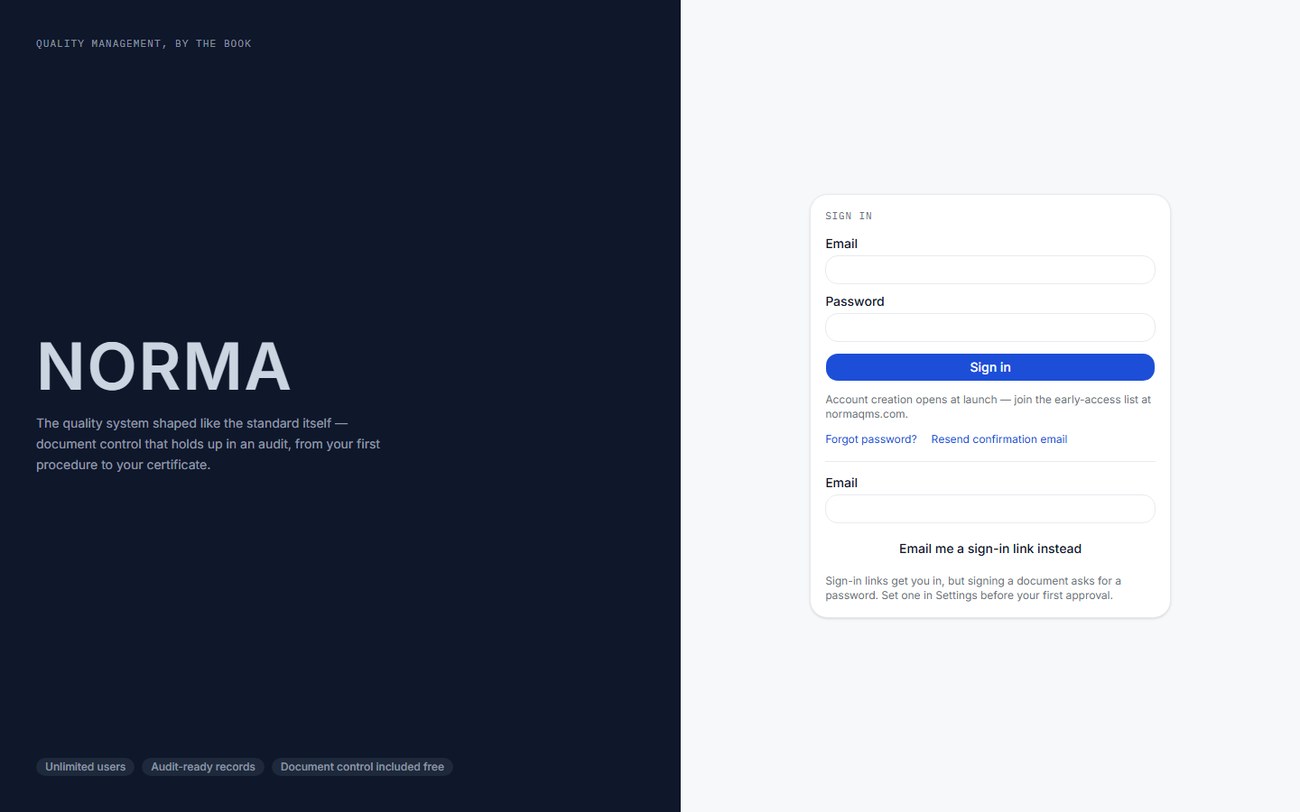
- Open your NormaQMS site and choose Sign in. To create a new shop, choose Start free instead; it opens Create your account, and Document Control is free with no card required. A consultancy uses Create your consultant account.
- Enter the email address attached to your membership and your password. If you use Email me a sign-in link, open the newest message and follow its link.
- If creating an account, complete the email confirmation step when prompted. Access to an existing shop still requires that shop's membership or an appropriate external invitation. To look around before committing, Explore the sample shop opens the public demo — a fictional 42-person machine shop, entered as one of three people; do not put real records there.
- Check the organization name in the sidebar. Use the organization switcher if you work in more than one shop or also belong to a consultancy.
- Open My Work. Review the work that applies to you, then open a record to perform its next step.
An expired or previously used email link cannot be reused. Request a fresh link. If you reach a no-access screen, check that the address used to sign in matches the address the administrator invited. A supplier contact, auditor, consultant, and internal member can have different landing pages.
Set a password before signing records
Email-link sign-in gets you into the app, but controlled electronic signatures require a password check. Open Settings > Password for signatures. Enter your current password, your new password, and confirmation, then select Save password. The new password must contain at least eight characters and match its confirmation. If you have no password yet, or entered through a recovery link, the form explains when the current-password box can be left blank.
Use your own account for all work. The person named on the signature must be the person performing it. Chapter 32 explains the signature process and the short identity-verification window.
Tip: Set the password on day one, before the first approval is due. The most common first-week support question is an approver who signed in by email link and cannot sign a revision because there is no password to check.
Confirm it's you for administrator actions
The first time you take an administrator-only action — inviting someone, changing roles, adjusting billing — Norma emails a six-digit code to your sign-in address and asks you to confirm it's you. Enter the code and you're through; there is nothing to install. The code expires after 10 minutes, and you can ask for a new one once a minute if you need it. Five wrong codes in a row pause the check for an hour, so slow down and check your inbox rather than guessing. Once you confirm, that browser stays confirmed for 12 hours — this step protects you if your password ever leaks, but not if someone else can read your email, so guard that account the same way you guard your password.
A practical first day
| Role | First-day tasks | Result to check |
|---|---|---|
| Quality manager | Check scope and roles; open My Work; review document, supplier, calibration, and NC registers | Correct access and a prioritized list of open obligations |
| Quality engineer | Find the effective drawing or instruction; review assigned CAPAs and engineering changes; open an inspection plan | Correct technical baseline and clear next actions |
| QA technician | Check due reading, instrument status, and work instructions; practice an NC in the sandbox | Ability to retrieve evidence and report a problem |
| Administrator | Finish setup, place people, assign roles, check plan access, and arrange a second authorized administrator if needed | The right people can work under their own identities |
Sessions and shared terminals
The app uses a 15-minute idle limit. Save your work before leaving a screen and sign out when leaving a shared station. A sign-in session and a signature verification are separate: being signed in does not eliminate password re-entry for a signature. If pages appear signed in but actions repeatedly return you to login, sign out fully and sign in again.
On a phone or narrow screen, open the navigation menu to change destinations and scroll wide registers horizontally when needed. Expand the record sections and tabs rather than assuming fields have disappeared. Use the sandbox for practice so sample NCs, approvals, and calibration events do not enter the production record.
In the user guide
This article is chapter 2, "First sign in and first day", of the NormaQMS User Guide (NORMA-UG-001), which is under Help > User guide. Chapter numbers in the text refer to that guide.