Account · For the owner
Members, roles, and permissions
Open: Settings > Organization. Open the Members area for sign-in membership. Purpose: maintain the organizational chart, functional responsibilities, and access to the shop.
Members and people
A member has an account allowed to sign in to the organization. A person is someone represented in the organization and competence records. A person can exist without an email or login. The organization workflow can invite an existing person to sign in; check the roster rather than creating a second person for the same employee.
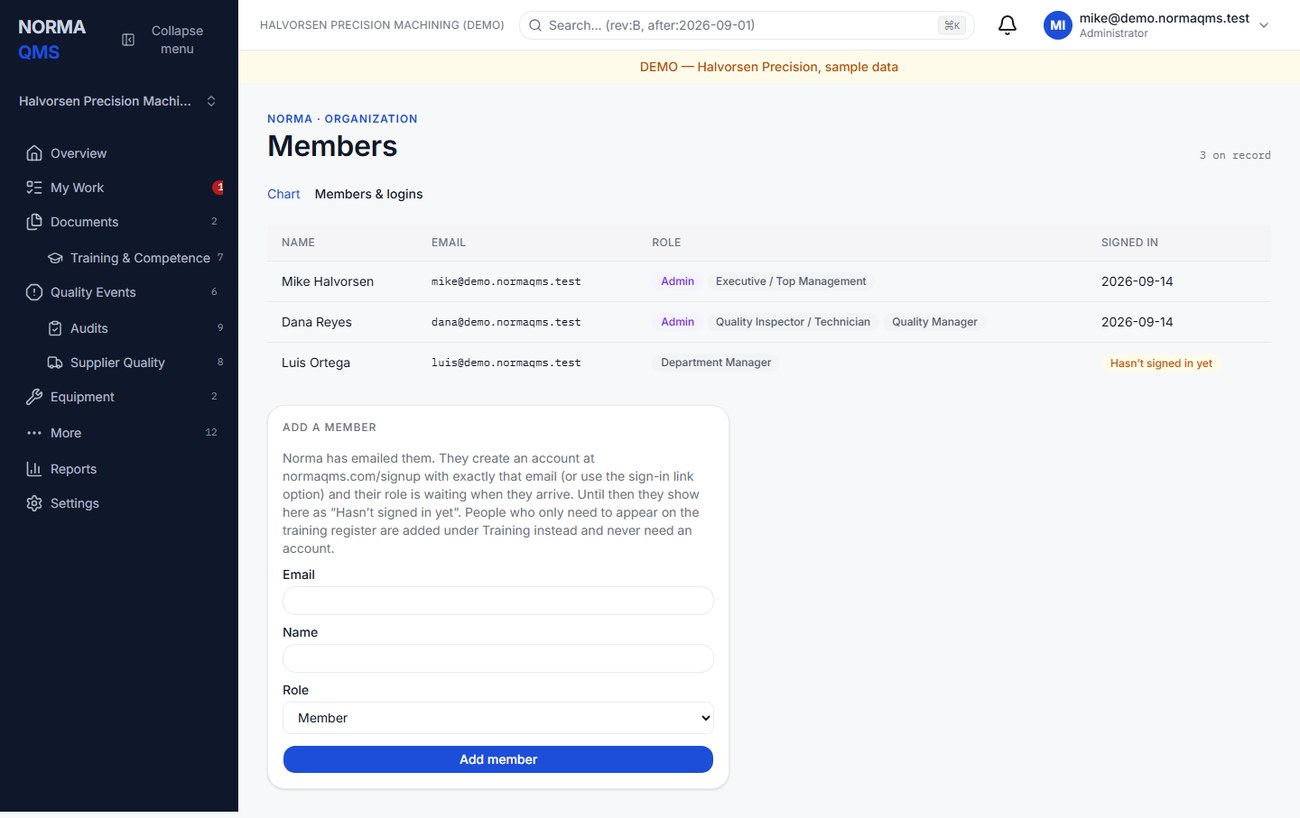
The older Members form may offer broad invitation tiers. The current working roster displays Admin and functional roles. Use Organization to review the resulting roles and unit assignments after adding a member.
Functional roles
| Role | Main working responsibilities |
|---|---|
| Quality Manager | All non-administrative quality capabilities, including scope, document effectivity, NC disposition and closure, CAPA effectiveness closure, and product authorization |
| Document Controller | Create, revise, attach, select approvers, and route documents for review; no approval or effectivity authority from this role alone |
| Internal Auditor | Plan and conduct audits, record findings, run assessments, raise NCs, CAPAs, and actions; no document approval or CAPA closure authority from this role alone |
| Department Manager | Department document work and approval, training assignment and recording, production records, infrastructure, investigations, and permitted exceptions |
| Engineer | Engineering documents and approval, design, change proposals, configuration, inspection planning, contract review, NC documentation, and CAPA investigation |
| Quality Inspector / Technician | Inspection and production evidence, calibration, traceability, training records, NC documentation, and CAPA investigation |
| Purchasing | Supplier management and evaluations, flow-downs, contract review, NC documentation, CAPA opening, and actions |
| Operator | Read effective documents, complete own reading and actions, raise a nonconformance, and view accessible record chains |
| Executive / Top Management | Policy-level document approval, planning, metrics, context, management review, and management-review packs |
Roles combine. Holding two roles gives the capabilities of both, subject to record scope and module access. Being a document owner, action assignee, or named reviewer can also matter for a particular task. A named approver signs only their own approval line. The procedure's on-screen controls and server checks still govern the action.
Administrator powers
Administrator is a separate setting. It allows membership management, organizational structure, billing, sandbox management, consultant access management, ownership and archive administration, and Quality Passport publication. A quality manager who lacks Admin should ask an administrator to perform those tasks. Consultants do not receive these powers through a Build key.
Maintain the organization
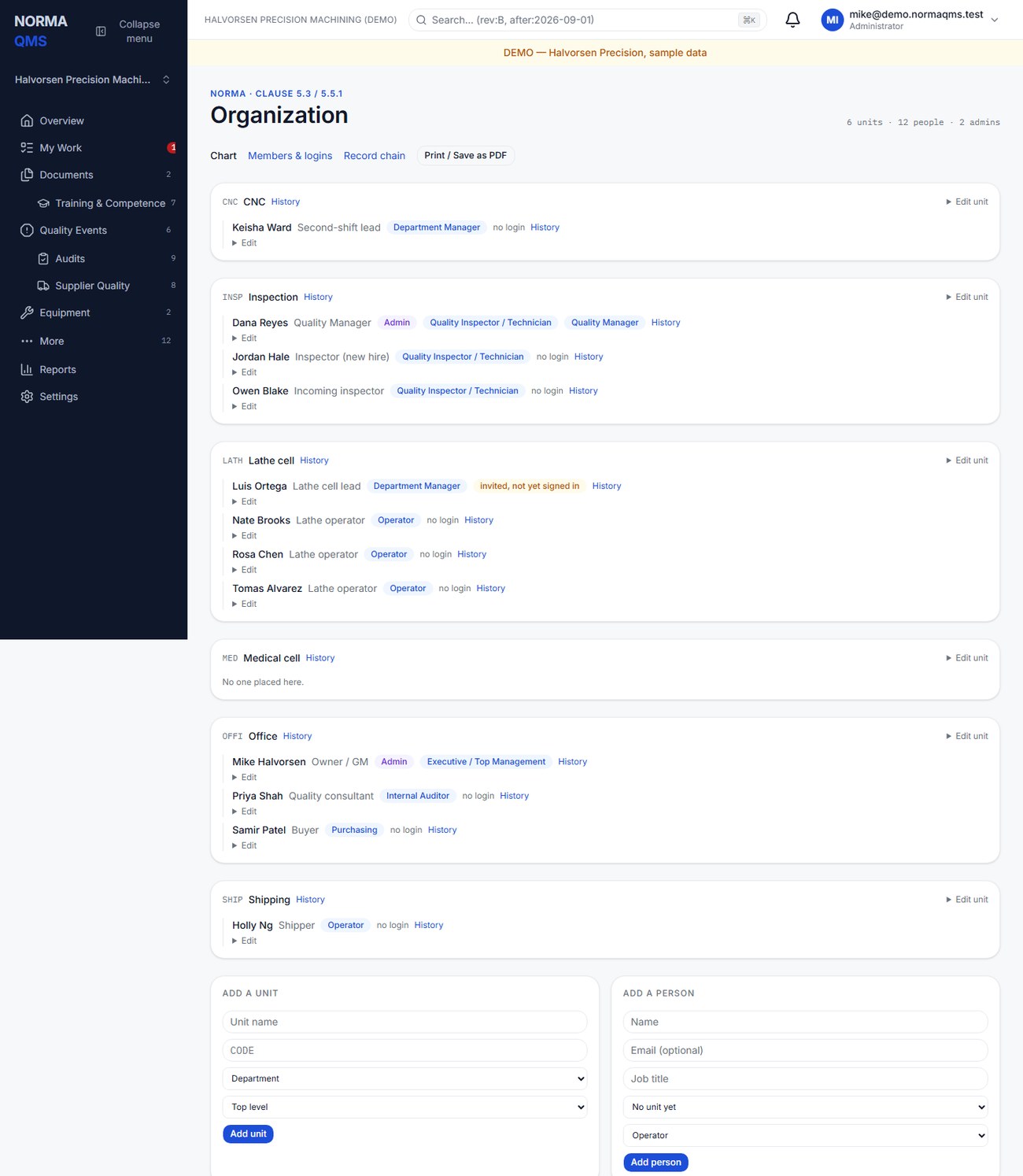
- Add a unit with a name, unique code, type, and parent. Use Rename or Move to correct its position later.
- Add a person with name, optional email, job title, home unit, and first role.
- Use Place to change a person's home unit. Select the person's role checkboxes and choose Save roles. Review Admin separately.
- If someone works across departments, use Add membership for an extra unit, with effective-from date and rationale where useful. End that extra membership when it no longer applies.
- Use Invite to sign in for a person who needs an account. Verify that their email is correct before submitting.
- For departures, deactivate the competence record or remove the person from the chart through the offered controls. Review sign-in membership, assignments, and external grants separately; chart removal should not be treated as proof that every access route is revoked.
You cannot retire a unit while a pending or effective scope baseline includes it. Revise the scope boundary first. Structural moves should reflect a real organization change, not be used to conceal overdue work.
Why two employees may see different records
Department-scoped users see organization-wide records and records in their assigned units, including the applicable descendants. Organization-wide roles, administrators, and consultant keys have broader visibility. New records normally take the creator's home unit; records raised from another record inherit the source unit. Changing where someone sits changes what they can see, but does not rewrite historical attribution.
If a record is missing, check organization, filters, unit membership, role, module access, and external-grant scope before recreating it. A copied link does not grant access.
In the user guide
This article is chapter 4, "Organization people and permissions", of the NormaQMS User Guide (NORMA-UG-001), which is under Help > User guide. Chapter numbers in the text refer to that guide.