Billing · For the owner
Managing your subscription
Billing sandbox and administration: plans and modules; use a sandbox. This is part of chapter 35 of the NormaQMS User Guide.
Plans and modules
Open: Settings > Billing. Administrator access is required. Document Control is included free and always. Everything else is bought as one bundle — the Everything, one price card, every module and unlimited users — or through a standards tier that appears when your adopted standard is AS9100 or ISO 13485 and adds that standard's overlay. Individual module tiles show their list price and an Unlock link, but the purchase is made from the bundle or tier card. When no tier applies the page says so: Working toward AS9100 or ISO 13485? Switch the standard in Settings and the tier appears here. An AS9100 tier does not by itself represent the ISO 13485 overlay, or vice versa.
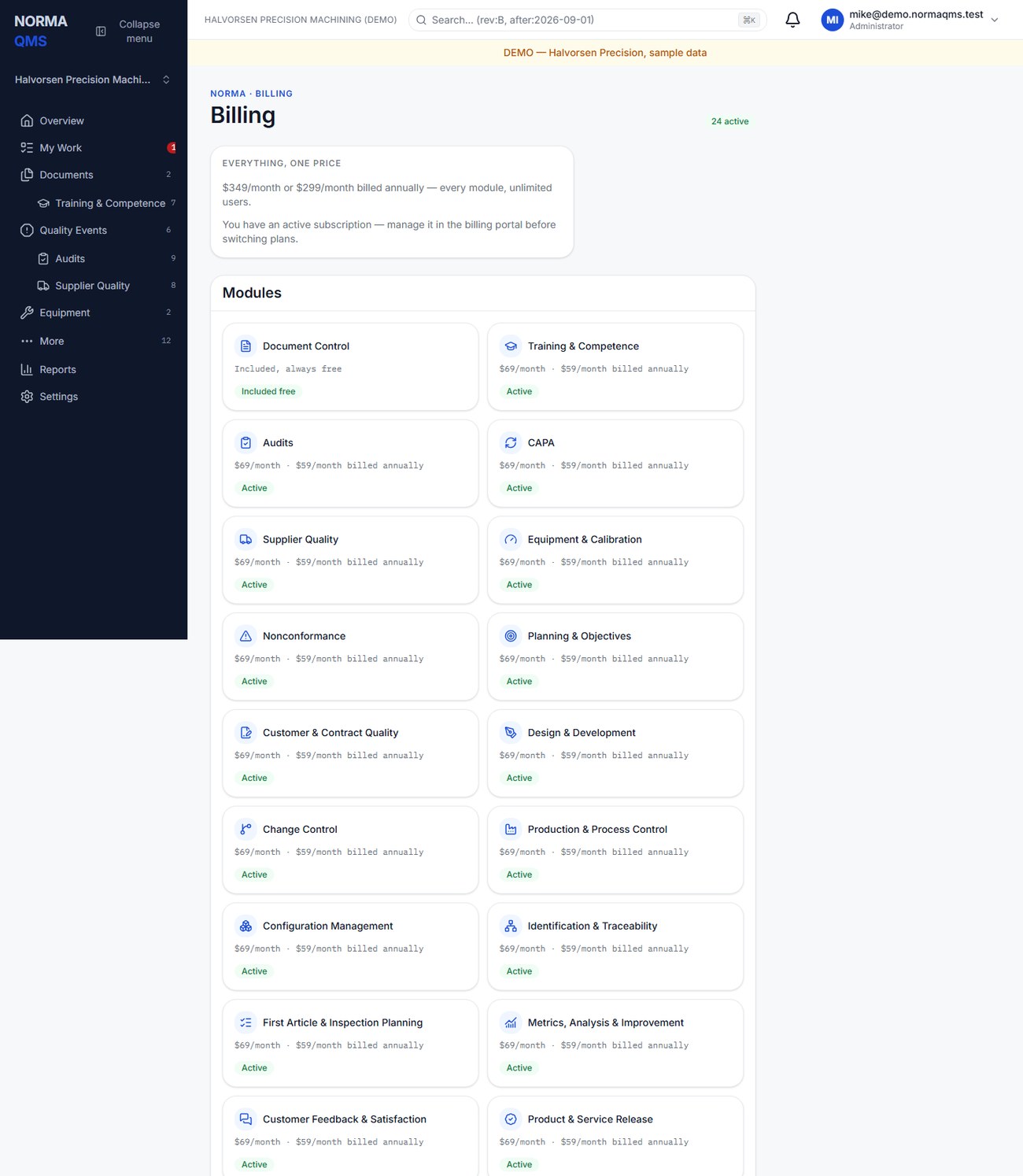
Review the current plan, billing interval, and checkout summary in the app before confirming a subscription change. Manage billing opens the billing portal for payment, invoice, and cancellation management; it appears after your first purchase. Turning a module off keeps its records — export them first, and they are back the moment you turn it on. To close the organization entirely, download the export and the termination pack from Settings and email support@normaqms.com. Prices are intentionally not reproduced in this manual; the current billing screen and checkout are the authority for a purchase.
Adopting a standard in a scope is separate from buying its overlay. A Plan gap calls attention to that difference. If payment was just completed, reload the module and Billing; if access still disagrees, contact support with the organization and transaction context.
Use a sandbox
Eligible plans allow an administrator to create a sandbox from the production organization's Settings. The sandbox shares plan entitlements but starts with empty business records. It is intended for training, onboarding, and qualification exercises.
- Choose Create sandbox from the parent organization's Settings.
- Open it and confirm the Sandbox identification before creating sample records.
- Run the exercise with sample people, documents, and quality records.
- Return to the production organization and confirm its work and registers remain separate.
- When a clean training environment is needed, use Reset sandbox from the parent. Reset archives the old sandbox and creates a fresh one; it does not erase its chain history.
Sandbox documents, NCs, and CAPAs use SBX identification and exports carry sandbox identification. Do not copy sandbox evidence into a production acceptance decision. Sandbox reset is not a production reset or backup recovery feature.
In the user guide
This article is part of chapter 35, "Billing sandbox and administration", of the NormaQMS User Guide (NORMA-UG-001), which is under Help > User guide. Chapter numbers in the text refer to that guide. The same chapter also covers: Telemetry; Validation evidence and continuity.