Account · For everyone
Needs you — the work queue
My Work notifications and action items: use my work as the daily queue; notifications are messages; create and complete an action item; controlled exceptions. This is chapter 6 of the NormaQMS User Guide.
Use My Work as the daily queue
My Work and Needs you derive obligations from live records. Examples include a revision awaiting your signature, reading that is Due, calibration work, NC disposition, CAPA verification, and an assigned action. Your role and organizational scope limit the list to work you can act on.
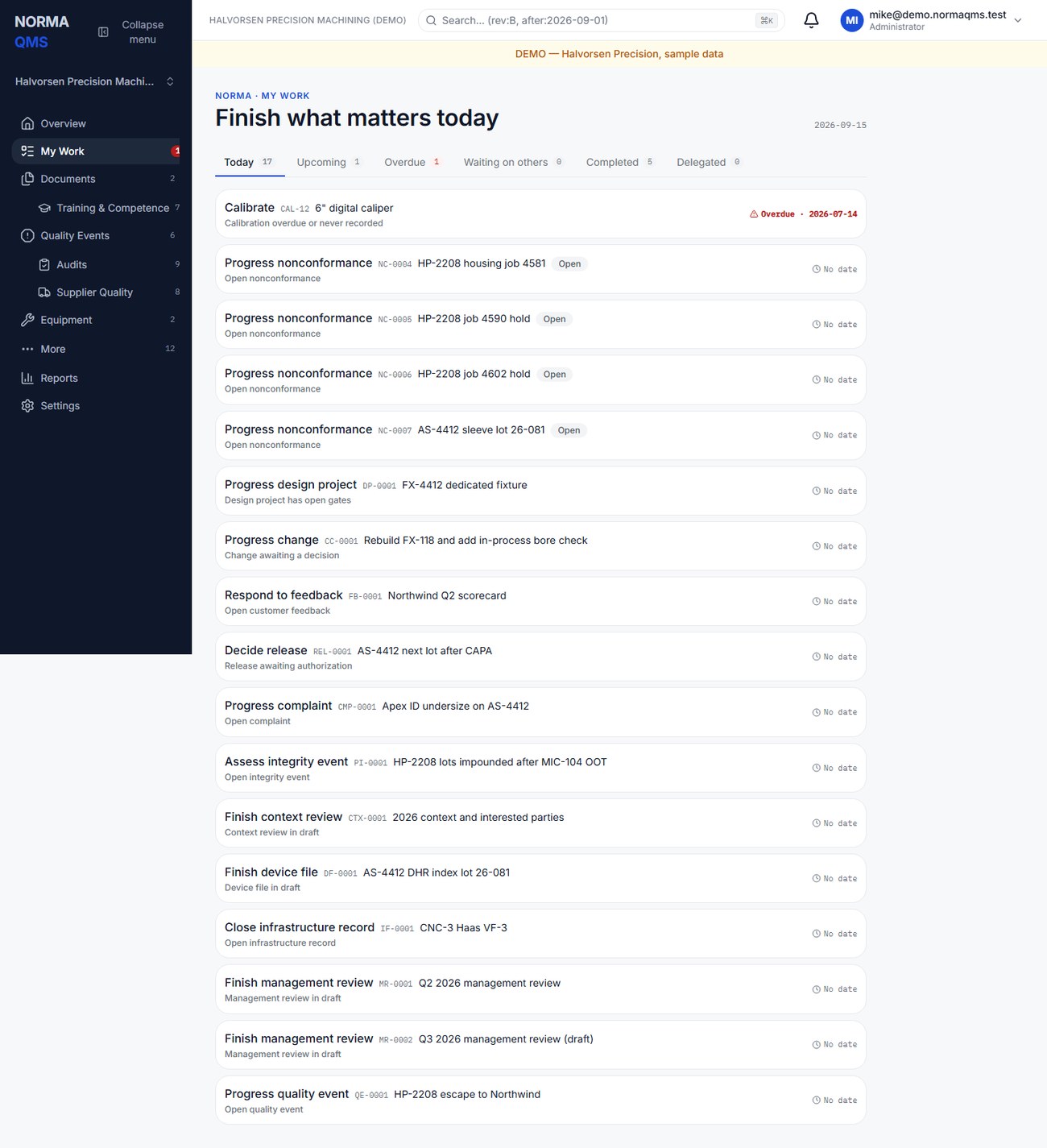
- Open My Work at the start of your shift or review session.
- Use the available groups or filters to focus on urgent and overdue obligations.
- Open the record, review its evidence, and perform the required action.
- Follow Back to work or the equivalent return link, when shown, to continue the queue.
- Refresh the list if another person has just completed the work. Work clears because the underlying record changed.
A count of zero means no work was produced for your current access and records. It is not a statement that every process is compliant. A department technician and an organization-wide quality manager can legitimately have different queues.
Tip: Work the Overdue group first, then Today. Waiting on others is the list to bring to the morning meeting — it is the work you cannot finish alone, with the name of the person who can.
Notifications are messages
The bell also provides access to in-app notifications and the notification center. Notifications tell you about events; work items tell you what still needs doing. Marking a notification read does not sign a document, finish training, or close an NC. Read status belongs to the recipient.
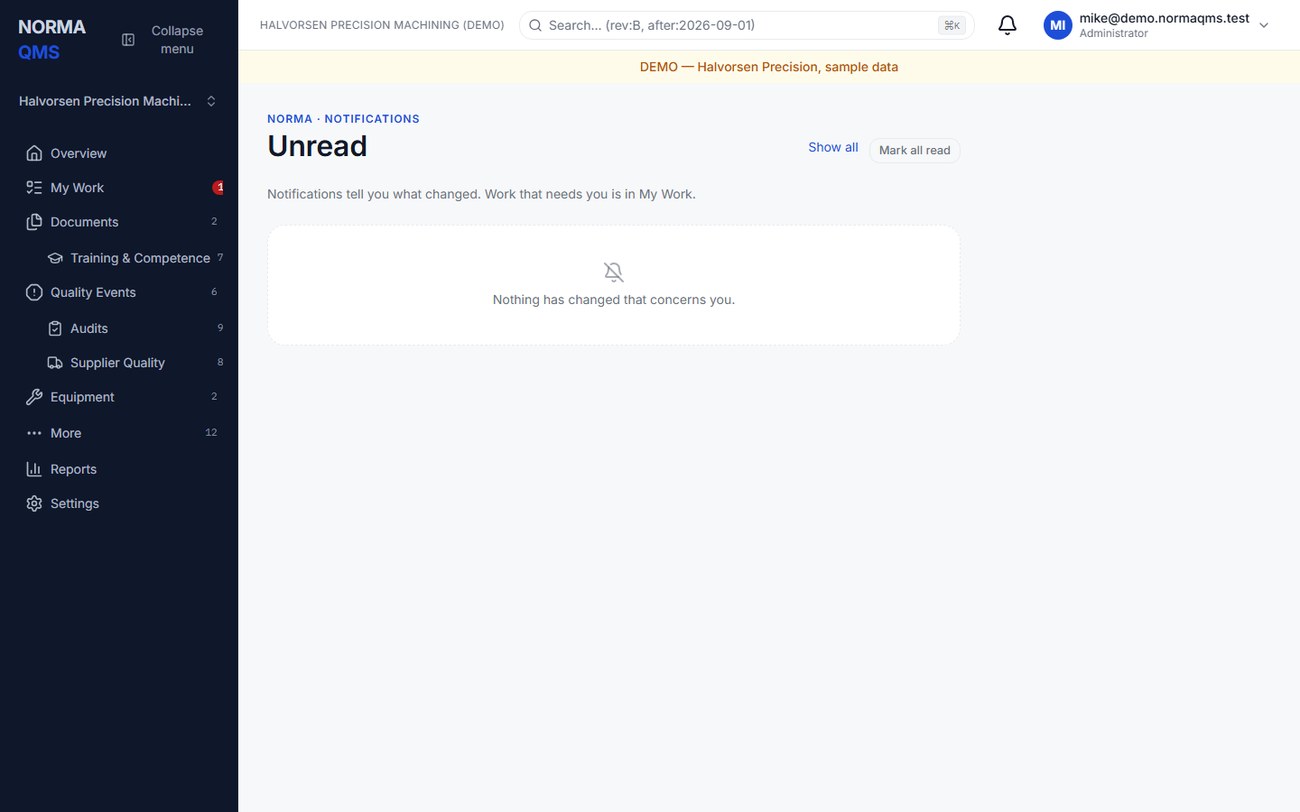
Related notifications may be bundled. A daily email digest, when enabled and configured for the organization, summarizes live work. Email delivery is separate from the record itself: if a message did not arrive, open My Work and the record rather than waiting to act.
Create and complete an action item
Open: Settings > Action items register, or Raise action on a supporting record.
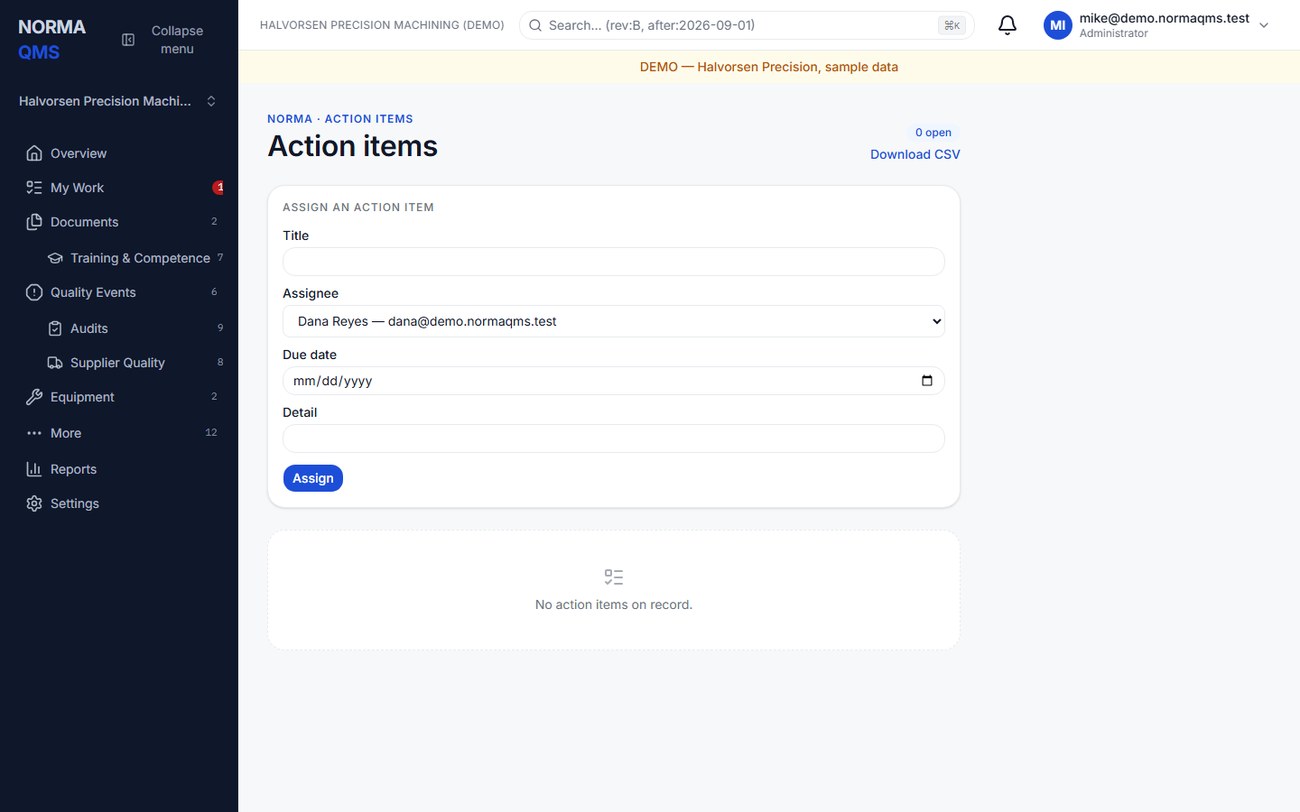
- Enter a specific title, supporting detail, assignee from the People list, and due date where appropriate. For example: “Verify revised deburr instruction on the next three BKT-204 lots.”
- Save the action and note its ACT reference. When raised from a source record, confirm the source link appears.
- The assignee performs the work and records a completion note explaining what was done and where its evidence can be found.
- If the action is no longer required, an authorized user cancels it with a reason. Do not use completion to mean cancellation.
- If ownership or timing changes, use the controlled exception rather than recreating the task.
Action completion does not automatically close its parent CAPA, NC, audit, or management review. Finish the parent's own decision and verification steps.
Controlled exceptions
For supported action items, CAPAs, and NCs, More may offer Extend due date or Reassign owner. Enter the new value and a meaningful reason of at least ten characters. The record retains the before-and-after values and reason; the new owner is notified where configured.
Authorized quality managers can reopen supported completed actions, closed CAPAs, closed NCs, and closed audits with a reason. The record returns to its working state and records the reopening count. Availability depends on lifecycle and permission. A controlled reopen is different from a CAPA's “not effective” verification loop, which returns the CAPA to implementation as part of its normal process.
In the user guide
This article is chapter 6, "My Work notifications and action items", of the NormaQMS User Guide (NORMA-UG-001), which is under Help > User guide. Chapter numbers in the text refer to that guide.