Records · For everyone
Finding records with search
Search and saved browser drafts: find a record; recover an unsaved browser draft. This is chapter 7 of the NormaQMS User Guide.
Find a record
Use the header search or Ctrl+K on Windows and Cmd+K on macOS. For ordinary text search, enter at least two characters. Search for a reference first when you know it, then try distinctive title words, a person, or a supporting reference. Exact record references rank ahead of text that merely mentions the reference.
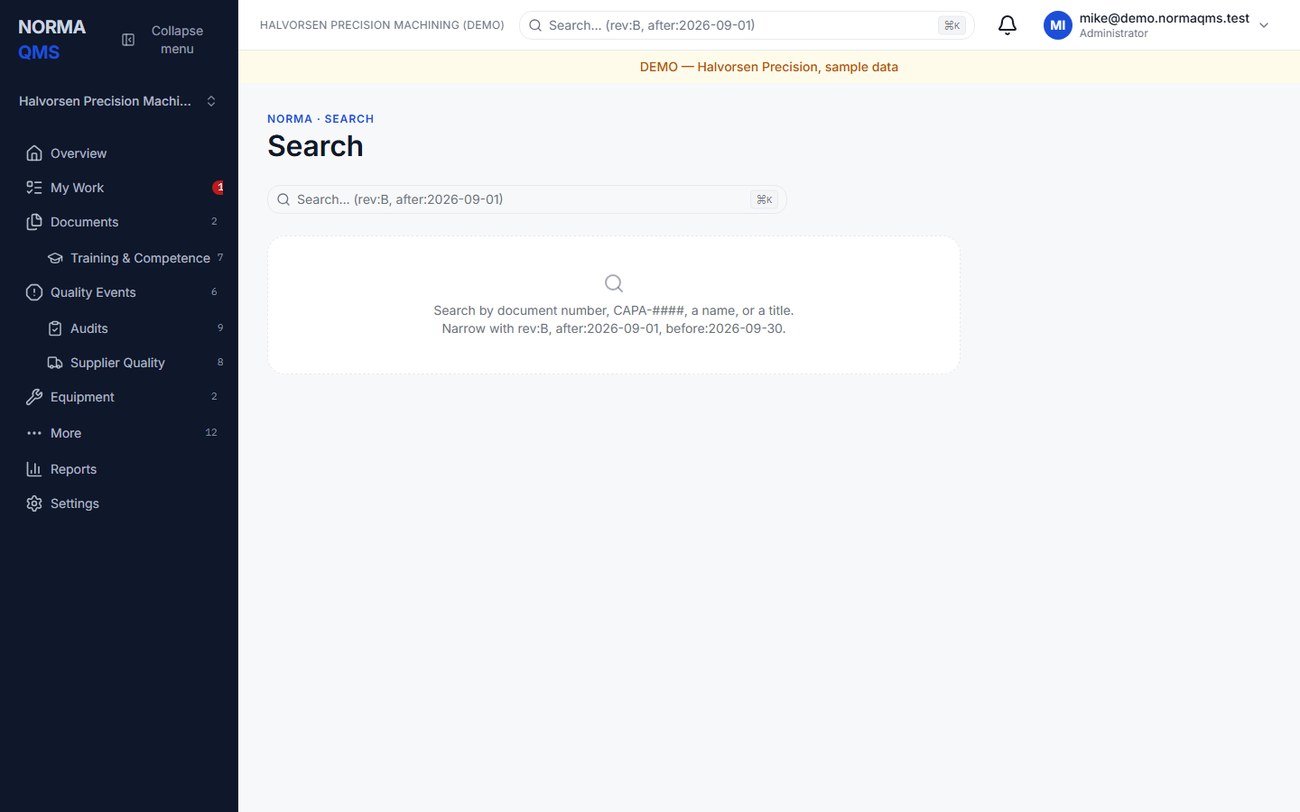
| Query | Meaning |
|---|---|
| CAPA-0004 | Find an exact reference or text mentioning it |
| CAPA- | Find matching reference prefixes |
| deburr | Find matching accessible text |
| rev:B | Find documents carrying revision B |
| deburr rev:B | Find matching documents that also carry revision B |
| after:2026-09-01 before:2026-09-30 | Apply a date range without requiring other text |
Revision filters match a revision label on a document, not necessarily the effective revision. Other record kinds are excluded by a revision filter. Date filters use the audit's planned date for audit records and creation date for the other search kinds. They do not mean document effective date, calibration performed date, or shipment date.
Valid revision filters contain one to eight letters or digits. Date filters use real YYYY-MM-DD dates. The page identifies malformed tokens that it ignored. If the same filter appears twice, the last value is used. Check the displayed active filters before relying on a result set.
Search respects organization, unit visibility, and external-auditor scope. An accessible record can appear locked if the module is not currently included. Locked results do not grant access to the record's contents. There is no universal job-number filter in this edition; use the reference fields and free text supported by the record.
Recover an unsaved browser draft
The document text editor, NC intake, and CAPA analysis forms can retain in-progress text in the current browser. If you return and see You have an unsaved draft, choose Restore to recover it or Discard to use the server's current values.
- Read the record header before restoring. Confirm that you are editing the intended organization and record.
- Restore the text, then compare it with current information. Another person may have changed the server record while you were away.
- Re-select any file attachment and re-enter any password when needed. These are not stored in the browser draft.
- Submit the form normally and confirm the saved result on the record page.
This feature is recovery assistance, not offline submission or a synchronization queue. A browser draft is not a saved quality record. Drafts older than seven days are discarded; successful submissions and drafts matching the saved fields are also cleared. Private browsing or blocked browser storage may prevent recovery. Other forms should not be assumed to have this feature.
In the user guide
This article is chapter 7, "Search and saved browser drafts", of the NormaQMS User Guide (NORMA-UG-001), which is under Help > User guide. Chapter numbers in the text refer to that guide.